FREE Shipping to Select Countries!
FREE Shipping to Select Countries!
If you have spent any amount of time in ARC Raiders, you know how much the game leans on movement. It is a fast, chaotic extraction shooter where you are always rotating, dodging, and trying to stay one step ahead of whatever is chasing you. As someone who has been gaming longer than this game’s average player has been alive, I can tell you one thing. Good movement is not optional in a game like this. It is survival. But weapon swaps, dodging, sliding, crouching, sprinting, and movement all get shoved into the same three fingers can lead to finger overload.
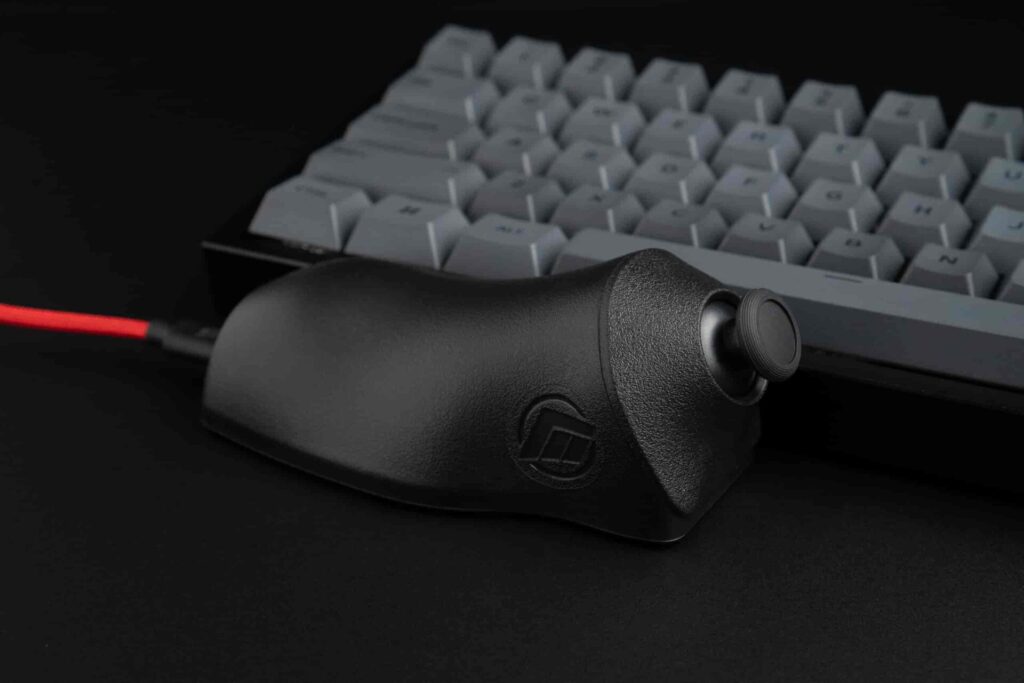
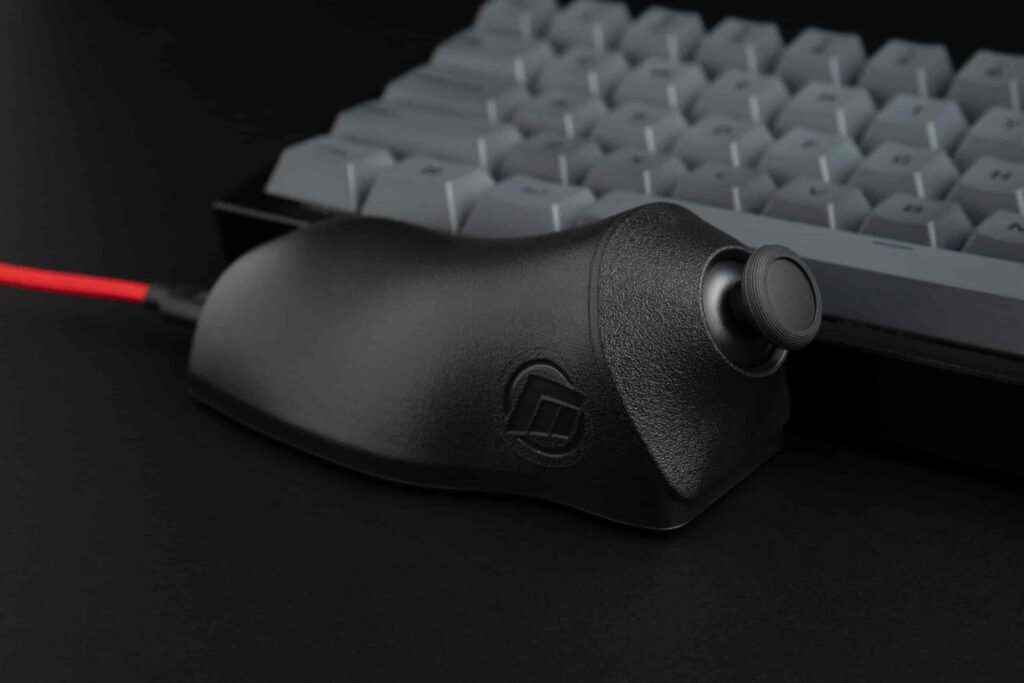
The MaxxStick offers a clean way around that, even in a game like ARC Raiders that does not support controller and keyboard at the same time. ARC Raiders forces us to use the MaxxStick in keyboard mode, which means the joystick is mapped to keyboard keys rather than true analog movement. In practice, that still works very well. You get eight directional inputs with two speeds. Stop, walk, or jog. The joystick becomes a more natural way to send those key presses, and your fingers remain free for the actual gameplay.
This guide walks you through how to set up a keyboard joystick for arc raiders, how to load the ready made profile, and how to match your in game settings so everything works smoothly.
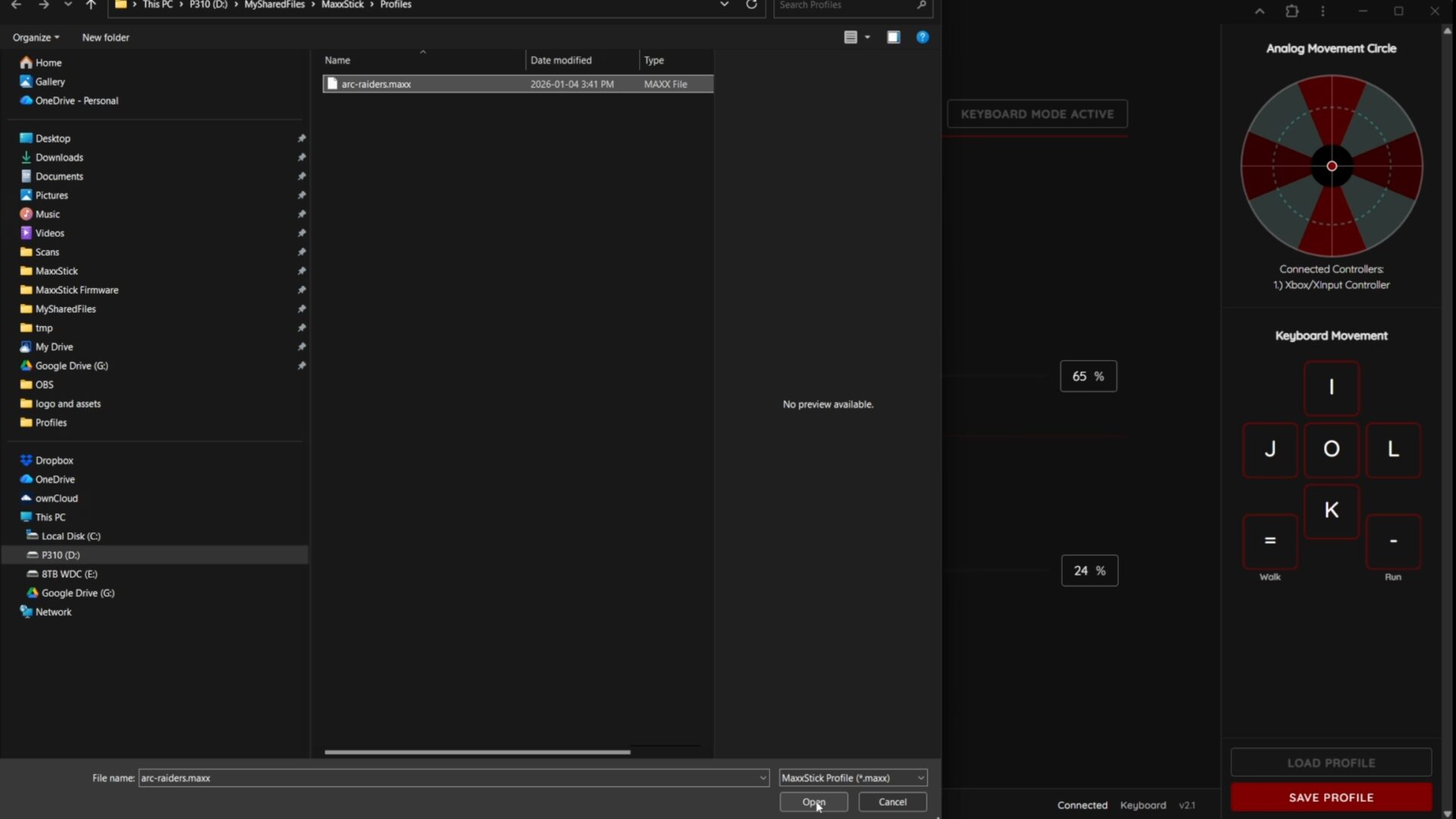
Start by putting the MaxxStick into keyboard mode, since ARC Raiders will not accept controller input at the same time as mouse and keyboard.
The ARC Raiders profile we provide includes:
You can download it here:
http://maxxstick.com/downloads/Profiles/arc-raiders.maxx
In the Maxx Utility:
This saves you from setting each bind and threshold one by one. The MaxxStick will automatically be in keyboard mode so you are ready to jump into the game.
We map movement to keys that sit away from where your left hand normally rests. That way your thumb takes over movement completely.
Your fingers would normally rest on ASD, so this layout keeps the movement binds away from them. This frees your left hand and the keys around WASD to focus on everything else the game throws at you. Abilities, dodges, quick swaps, and anything else you need in a fight.
Pushing the thumbstick button will actuate the O key. In ARC Raiders, that can be used for unarming to sprint faster or any action you want quick access to.
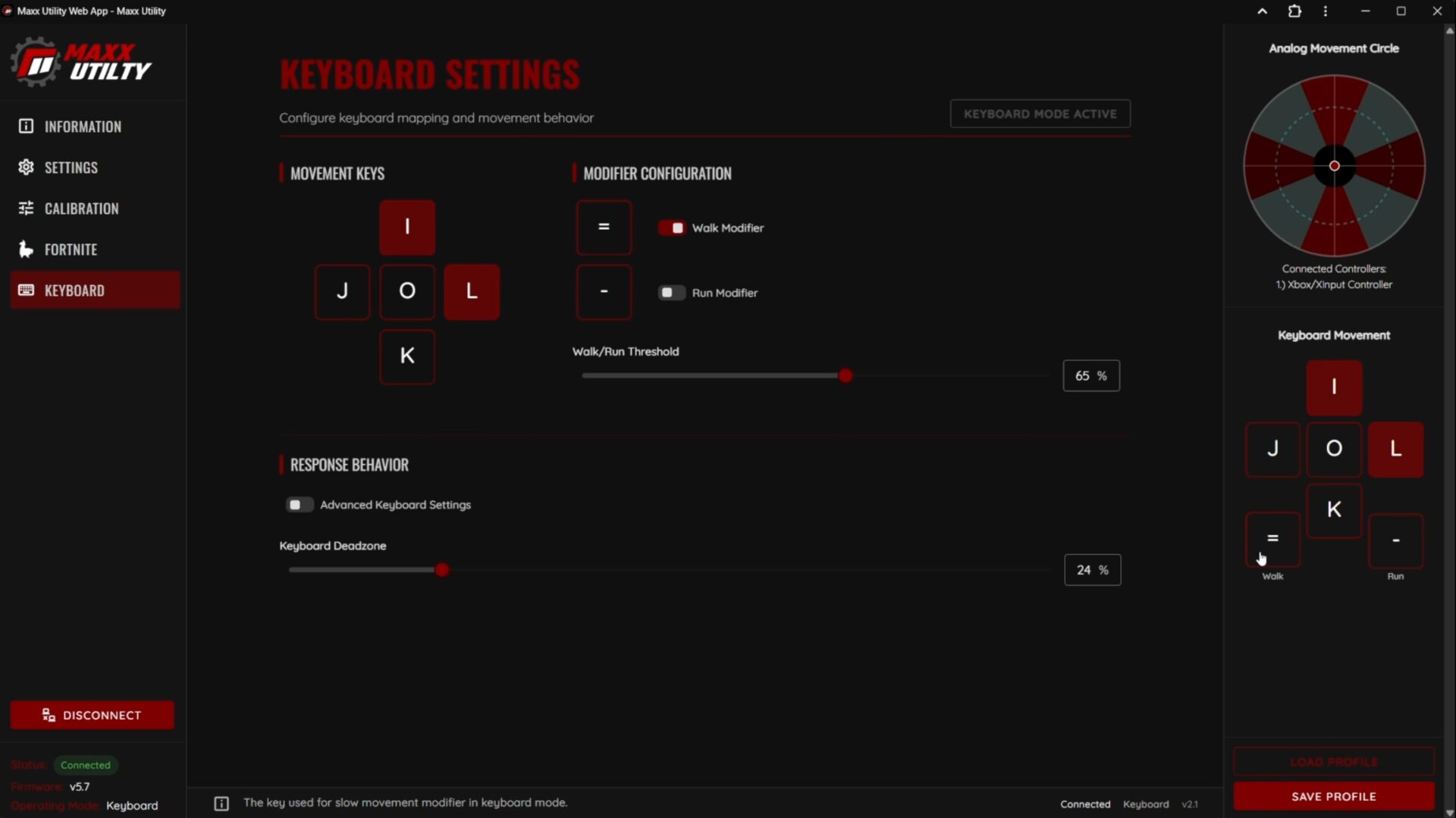
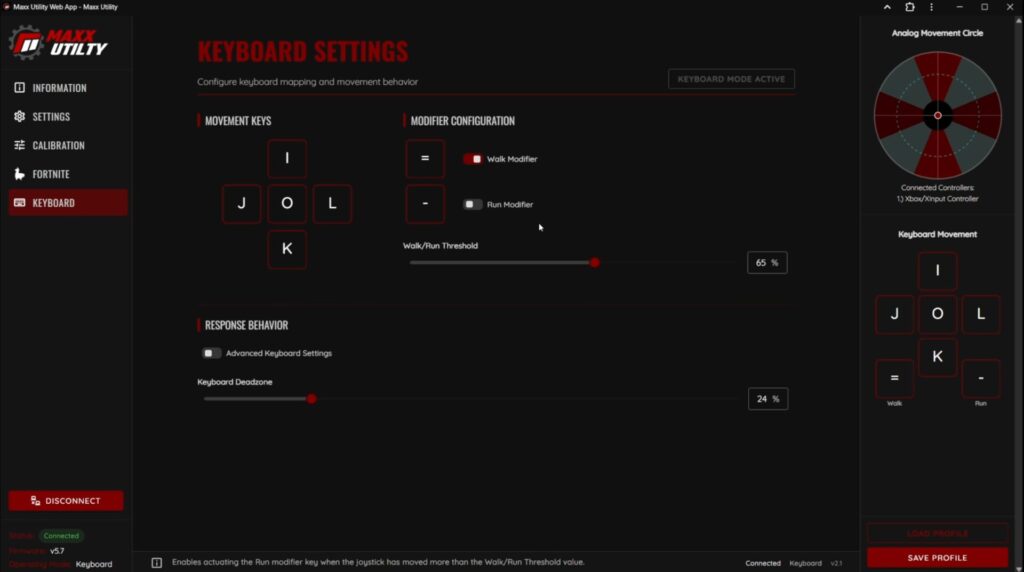
ARC Raiders has both walk and jog speeds. If you are in a situation where you don’t want enemies to register your footstep sounds, you want to walk. The Maxx Utility lets us add a walk modifier key that activates when the joystick is moved below a certain threshold.
In this profile:
What this means in practice:
This comes in handy when you need to approach quietly or reposition without drawing attention.
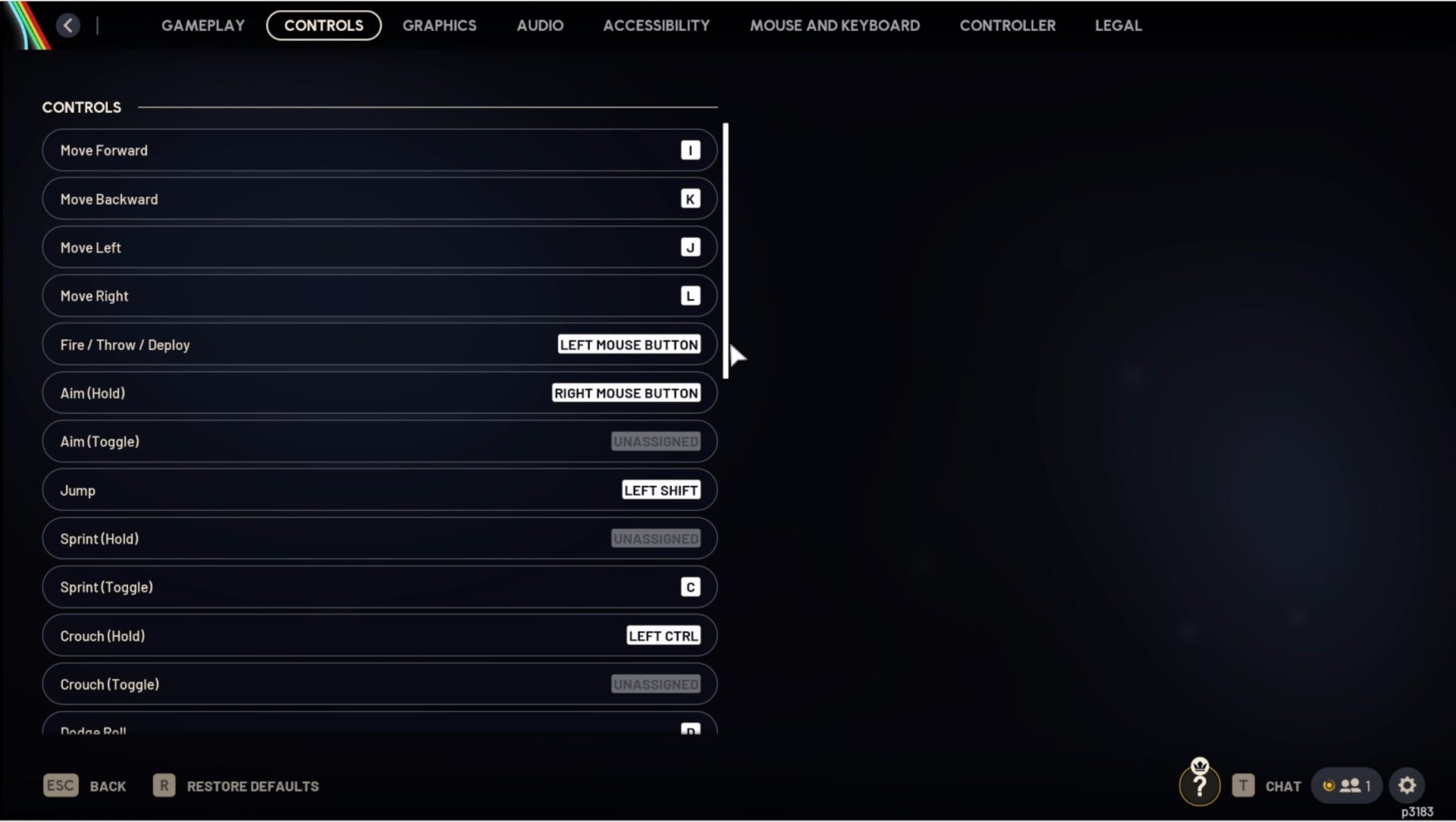
Your in-game keybinds must match the MaxxStick outputs. ARC Raiders will only do what the keyboard tells it.
Go to:
Settings → Controls
Set movement:
Set walking:
Only “Walk Hold” should be used. “Walk Toggle” will interfere with the behavior we want.
Finally, assign the O key to whichever action you want on the thumbstick press. The example in the video uses it to unarm for sprinting.
Your fingers that rest on the keyboard are now free to focus on actions that matter. The example layout from the video uses:
This keeps everything within a small radius around ASD. You are reducing the stress on your hand and avoiding the issue where one finger ends up doing too many things at once.
This layout is built for three simple reasons.
1. Reduce finger overload
WASD asks your left hand to move your character and handle combat actions at the same time. Moving that responsibility to your thumb is a huge relief.
2. Improve consistency
Even though ARC Raiders does not allow true analog movement, the joystick still feels more natural than tapping four keys repeatedly. Your speed shifts smoothly from walk to jog, and your fingers stop getting tangled.
3. Faster reaction time
With your fingers focused on actions around ASD, you dodge quicker, access abilities faster, and switch weapons without hesitation.
Players searching for ARC Raiders best settings or ARC Raiders PC controls will find that this setup fixes one of the biggest frustrations in the game.

ARC Raiders rewards players who stay calm, stay mobile, and stay ahead of the fight. The MaxxStick does not magically give you 360 degree movement in this game, since the game does not support that. What it does give you is freedom. Movement goes to your thumb. Your fingers are free. Your reactions improve. That alone is worth the setup.
If you are new to ARC Raiders or just trying to get more out of your controls, this setup gives you more comfort and more control without losing the feel of mouse aim.